Build a custom mutator
7. Generating code
Now, it's time to revisit the block-code generator
in javascript.js. Since the sample app displays JavaScript code, you'll make a
generator for JavaScript.
Update the code generator
Update the resizable_list generator in javascript.js to contain the
following code:
forBlock['resizable_list'] = function (block, generator) {
  // Create a list with any number of elements of any type.
  const elements = new Array(block.itemCount);
  for (let i = 0; i < block.itemCount; i++) {
    elements[i] = generator.valueToCode(block, 'ADD' + i, Order.NONE) || 'null';
  }
  const code = '[' + elements.join(', ') + ']';
  return [code, Order.ATOMIC];
};
This code generator converts each input to code, then comma-separates the list and joins them all between two brackets. This is how a block like this:
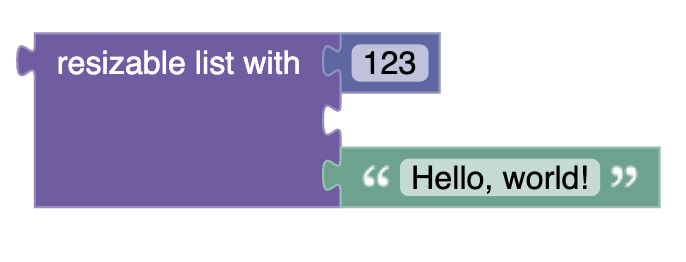
Generates this code:
[123, null, 'Hello, world!'];
Test it
Test your mutator by dragging it into the workspace, right clicking, and adding an input. You may notice something strange. Although the block generates code when it first enters the workspace, adding a new input does not update the code.
Now try moving the list block. The code window will be updated.
Why doesn't the code update immediately?
In the sample app, a function called runCode() handles generating the code
for the code window. A change listener
in index.js calls runCode() when certain types of events are detected.
This means that when blocks are changed, moved, or added, an event is fired and the code is regenerated. However, the new mutator does not fire any events, so adding or removing an input is not enough to cause the code to be regenerated. In order for the code to be regenerated, a different event has to occur (like moving the block).
The next step will address this issue by adding a function to the mutator that fires an event when the number of inputs are changed.