Customizing a Blockly toolbox
5. Change the look of a selected category
Change the selected appearance
Open your application and click on a category. You will see that it doesn't give any indication that it has been clicked. Worse than that, if you click on the category a second time the background color will disappear.
To fix this, we are going to override the setSelected method to change the look
of a category when it has been clicked. In the default category class this method
adds a colour to the entire row when a category is selected. Since we have already
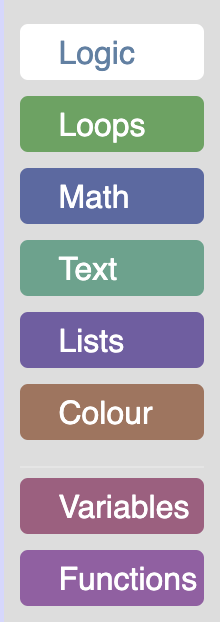
expanded the colour over our entire div, we are going to change the background
color of the div to white, and the text to the color of the category when it has
been selected.
The styling code can be seen below:
/** @override */
setSelected(isSelected){
   // We do not store the label span on the category, so use getElementsByClassName.
   var labelDom = this.rowDiv_.getElementsByClassName('blocklyToolboxCategoryLabel')[0];
   if (isSelected) {
     // Change the background color of the div to white.
     this.rowDiv_.style.backgroundColor = 'white';
     // Set the colour of the text to the colour of the category.
     labelDom.style.color = this.colour_;
   } else {
     // Set the background back to the original colour.
     this.rowDiv_.style.backgroundColor = this.colour_;
     // Set the text back to white.
     labelDom.style.color = 'white';
   }
}
Include accessibility features
Since setSelected overrides without calling super.setSelected(), this version replaces the parent's behaviour entirely.
The parent method does one thing we still need: it sets the ARIA state to State.SELECTED
so that screen readers can announce when a category is selected.
There are multiple ways to handle this:
- Call
super.setSelected(preferred) - Take a look at the parent implementation and add the same functionality.
In this case, add a call to super.setSelected. This will ensure that if
additional functionality is added to the parent class in the future, your setSelected
will properly inherit it.
Add the full setSelected function into custom_category.js:
/** @override */
setSelected(isSelected){
  super.setSelected(isSelected);

   // We do not store the label span on the category, so use getElementsByClassName.
   var labelDom = this.rowDiv_.getElementsByClassName('blocklyToolboxCategoryLabel')[0];
   if (isSelected) {
     // Change the background color of the div to white.
     this.rowDiv_.style.backgroundColor = 'white';
     // Set the colour of the text to the colour of the category.
     labelDom.style.color = this.colour_;
   } else {
     // Set the background back to the original colour.
     this.rowDiv_.style.backgroundColor = this.colour_;
     // Set the text back to white.
     labelDom.style.color = 'white';
   }
}
Review the parent implementation whenever you override a Blockly method, and call
super() unless you have a strong reason not to. This helps you properly
implement non-visual processes that are important.
The result
Open the running application and click on the "Logic" category. You should now see a white category with a colored label.