Block structure in JSON
In this document, we'll discuss how to use JSON to define the inputs, fields (including labels), and connections in your block. If you're not familiar with these terms, see Anatomy of a block before proceeding.
You can also define your inputs, fields, and connections in JavaScript.
Overview
In JSON, you describe a block's structure with one or more message strings
(message0, message1, ...) and their corresponding argument arrays (args0,
args1, ...). Message strings consist of text, which is converted to labels,
and interpolation tokens (%1, %2, ...), which mark the locations of
connections and non-label fields. The argument arrays describe how to handle the
interpolation tokens.
For example, this block:

is defined by the following JSON:
- JSON
{
  "message0": "set %1 to %2",
  "args0": [
    {
      "type": "field_variable",
      "name": "VAR",
      "variable": "item",
      "variableTypes": [""]
    },
    {
      "type": "input_value",
      "name": "VALUE"
    }
  ]
}
The first interpolation token (%1) represents a variable
field
(type: "field_variable"). It is described by the first object in the args0
array. The second token (%2) represents the input connection at the end of a
value input
(type: "input_value"). It is described by the second object in the args0
array.
Messages and inputs
When an interpolation token marks a connection, it is really marking the end of the input that contains the connection. This is because the connections in value and statement inputs are rendered at the end of the input. The input contains all of the fields (including labels) after the previous input and up to the current token. The following sections show sample messages and the inputs that are created from them.
Example 1
- JSON
{
  "message0": "set %1 to %2",
  "args0": [
    {"type": "field_variable", ...} // token %1
    {"type": "input_value", ...}    // token %2
  ],
}
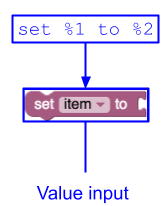
This creates a single value input with three fields: a label ("set"), a
variable field, and another label ("to").
Example 2
- JSON
{
  "message0": "%1 + %2",
  "args0": [
    {"type": "input_value", ...} // token %1
    {"type": "input_value", ...} // token %2
  ],
}
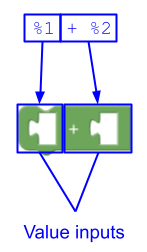
This creates two value inputs. The first has no fields and the second has one
field ("+").
Example 3
- JSON
{
  "message0": "%1 + %2 %3",
  "args0": [
    {"type": "input_value", ...}   // token %1
    {"type": "input_end_row", ...} // token %2
    {"type": "input_value", ...}   // token %3
  ],
}
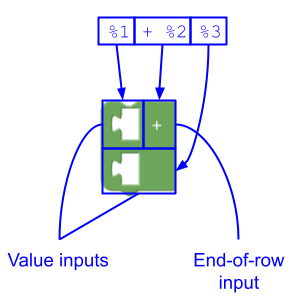
This creates:
- A value input with no fields,
- An end-of-row input
with a label field (
"+"), which causes the following value input to be rendered on a new row, and - A value input with no fields.
Dummy input at end of message
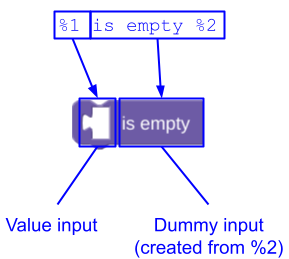
If your message string ends with text or fields, you don't need to add an
interpolation token for the dummy input that contains them -- Blockly adds it
for you. For example, instead of defining a lists_isEmpty block like this:
- JSON
{
  "message0": "%1 is empty %2",
  "args0": [
    {"type": "input_value", ...} // token %1
    {"type": "input_dummy", ...} // token %2
  ],
}
you can let Blockly add the dummy input and define it like this:
- JSON
{
  "message0": "%1 is empty",
  "args0": [
    {"type": "input_value", ...} // token %1
  ],
}
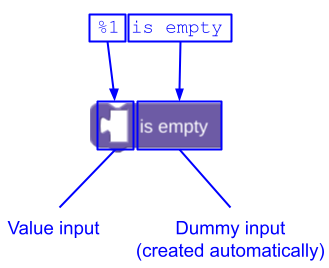
The automatic addition of a tailing dummy input allows translators to change
message without needing to modify the arguments that describe the
interpolation tokens. For more information, see Interpolation token
order.
implicitAlign
In rare cases the automatically created trailing dummy input needs to be aligned
to the "RIGHT" or "CENTRE". The default if not specified is "LEFT".
In the example below message0 is "send email to %1 subject %2 secure %3"
and Blockly automatically adds a dummy input for the third row. Setting
implicitAlign0 to "RIGHT" forces this row to be right aligned.

implicitAlign
applies to all inputs that are not explicitly defined in the JSON
block definition, including end-of-row inputs that replace newline characters
('\n'). There is also the deprecated property
lastDummyAlign0 that has the same behavior as implicitAlign0.
When designing blocks for RTL (Arabic and Hebrew), left and right are reversed.
Thus "RIGHT" would align fields to the left.
Multiple messages
Some blocks are naturally divided into two or more separate parts. Consider this repeat block which has two rows:

If this block were described with a single message, the message0 property
would be "repeat %1 times %2 do %3", where %2 represents an end-of-row
input. This string is awkward for a translator because
it is difficult to explain what the %2 substitution means. The %2 end-of-row
input may also not even be desired in some languages. And there may be multiple
blocks that wish to share the text of the second row. A better approach
is to use more than one message and args properties:
- JSON
{
  "message0": "repeat %1 times",
  "args0": [
    {"type": "input_value", ...} // token %1 in message0
  ],
  "message1": "do %1",
  "args1": [
    {"type": "input_statement", ...} // token %1 in message1
  ],
}
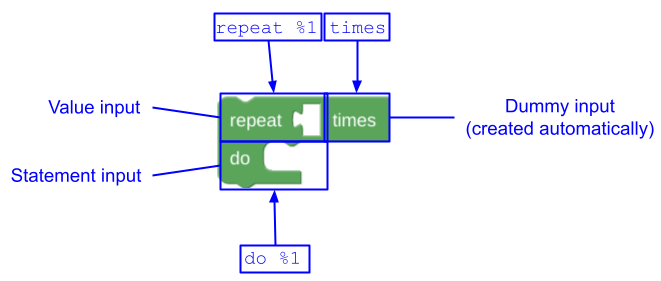
Any number of message, args, and implicitAlign properties may be defined
in the JSON format, starting with 0 and incrementing sequentially. Note that the
Block Factory is not capable of splitting messages into multiple parts, but
doing so manually is straightforward.
Interpolation token order
When localizing blocks, you might need to change the order of the interpolation
tokens in a message. This is particularly important in languages that have a
different word order than English. For example, we started with a block defined
by the message "set %1 to %2":
Now consider a hypothetical language where "set %1 to %2" needs to be reversed
to say "put %2 in %1". Changing the message (including the order of the
interpolation tokens) and leaving the arguments array unchanged results in the
following block:

Blockly automatically changed the order of the fields, created a dummy input, and switched from external to internal inputs.
The ability to change the order of the interpolation tokens in a message makes localization easier. For more information, see JSON message interpolation.
Text handling
Text on either side of an interpolation token is whitespace-trimmed.
Text using the character % (e.g. when referring to a percentage) should use
%% so that it is not interpreted as an interpolation token.
Blockly also automatically replaces any newline character (\n) in the message
string with an end-of-row input.
- JSON
{
  "message0": "set %1\nto %2",
  "args0": [
    {"type": "field_variable", ...}, // token %1
    {"type": "input_value", ...},    // token %2
  ]
}
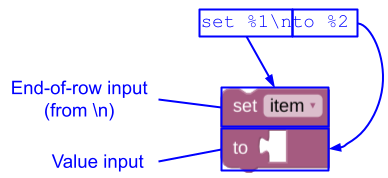
Arguments arrays
Each message string is paired with an args array of the same number. For
example, message0 goes with args0. The interpolation tokens
(%1, %2, ...) refer to the items of the args array and must match the
args0 array completely: no duplicates, no omissions. Token numbers refer to
the order of the items in the arguments array; they are not required to occur
in order in a message string.
Every object in the arguments array has a
type string. The rest of the parameters vary depending on the type:
You can also define your own custom fields and custom inputs and pass them as args.
alt fields
Every object may also have an alt field. In the case that Blockly does not
recognize the object's type, then the alt object is used in its place. For
example, if a new field named field_time is added to Blockly, blocks using
this field could use alt to define a field_input fallback for older versions
of Blockly:
- JSON
{
  "message0": "sound alarm at %1",
  "args0": [
    {
      "type": "field_time",
      "name": "TEMPO",
      "hour": 9,
      "minutes": 0,
      "alt":
        {
          "type": "field_input",
          "name": "TEMPOTEXT",
          "text": "9:00"
        }
    }
  ]
}
An alt object may have its own alt object, thus allowing for chaining.
Ultimately, if Blockly cannot create an object in the args0 array (after
attempting any alt objects) then that object is simply skipped.
Accessibility labels and roles
Blockly generates accessibility labels and roles for blocks, inputs, and fields so that screen readers can describe them. You can customize these from JSON. For a fuller explanation of what each one controls, see the corresponding sections of the JavaScript structure guide.
Unlike the JavaScript API, the JSON properties accept only strings (not
functions). All of them support
Blockly.Msg references of the form
%{BKY_...}, which are replaced at render time.
Input labels
An input's accessibility label is derived from the label fields that precede it.
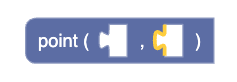
When that derived label isn't descriptive enough, add an ariaLabelText
property to the input's argument object to override it. For example, the two
value inputs in this coordinate block are preceded only by punctuation, so each
one gets a custom label:
- JSON
{
  "message0": "point ( %1 , %2 )",
  "args0": [
    {
      "type": "input_value",
      "name": "X",
      "ariaLabelText": "x coordinate"
    },
    {
      "type": "input_value",
      "name": "Y",
      "ariaLabelText": "y coordinate"
    }
  ]
}
Field labels
Every field has a default accessibility label of the form <type>: <value>
(for example, number: 100). To use a more specific type name for a particular
field, add an ariaTypeName property to the field's argument object. The motor
block below is announced as speed: 100 instead of number: 100:
- JSON
{
  "message0": "set motor speed to %1",
  "args0": [
    {
      "type": "field_number",
      "name": "SPEED",
      "value": 100,
      "ariaTypeName": "speed"
    }
  ]
}
To set the type name for all instances of a field type, override
getAriaTypeName in a custom
field
instead.
Role descriptions
Every block has an
aria-roledescription
that describes its shape. By default it is container, value, or statement,
based on the block's connections. To override it, add a top-level
ariaRoleDescription property to the block definition. For example, a
hexagonal boolean block in the Zelos renderer might use:
- JSON
{
  "message0": "%1 and %2",
  "args0": [
    {"type": "input_value", "name": "A", "check": "Boolean"},
    {"type": "input_value", "name": "B", "check": "Boolean"}
  ],
  "output": "Boolean",
  "ariaRoleDescription": "boolean"
}
In most cases you should rely on the default role descriptions rather than setting a custom one for every block. See Custom role descriptions for guidance on when a custom role description is worthwhile.